Building Home Page
9101 views
•
Updated 25 seconds ago
Create a template
After creating a page with the status set to Template, you will see a button labeled Template Builder. Click this button to open the template builder interface, as shown in the screenshot below.
Here are a few important notes when using the Template Builder:
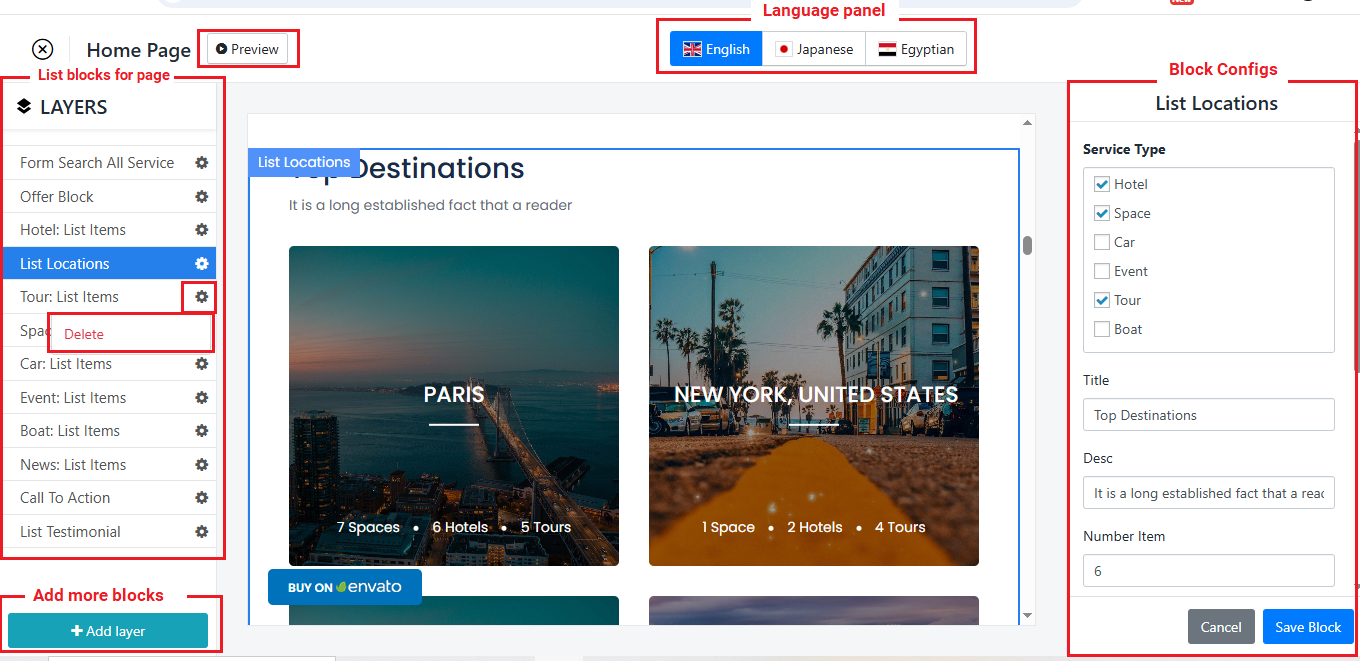
- List of Elements (Blocks): A collection of available block elements that you can use to build your page layout.
- Element Config: All configuration fields for each block are listed here. Make sure to complete each field to ensure proper display.
- Add More Blocks: We currently support more than 30 block elements (detailed in the next section). You can freely combine them to design a custom page.
- Preview: Use the preview function to view how the page will appear on the front end.
- Delete: Each block has a settings icon on the top-right corner. Click it to delete any unnecessary blocks.
- Language Panel: After entering content in the default language, you can switch to other languages to complete the content for additional languages.
- Please note: Select the Main language - This step is essential when setting up your website. Sub-languages are generated from the main language. For example, if English is your primary language and you switch to Japanese without having content in Japanese, the site may not display correctly due to missing core content.
Was this article helpful?