Captcha For Login/Register form
8681 views
•
Updated 13 seconds ago
Recaptcha Settings
The reCAPTCHA feature is a powerful tool to help protect your website from spammers.
How to set up reCAPTCHA:
- Go to the official reCAPTCHA site: https://www.google.com/recaptcha
- Click on "Admin Console" (you’ll need to log in with your Google account).
- Register a new site by filling in the form:
- Label: Enter a name to identify your website.
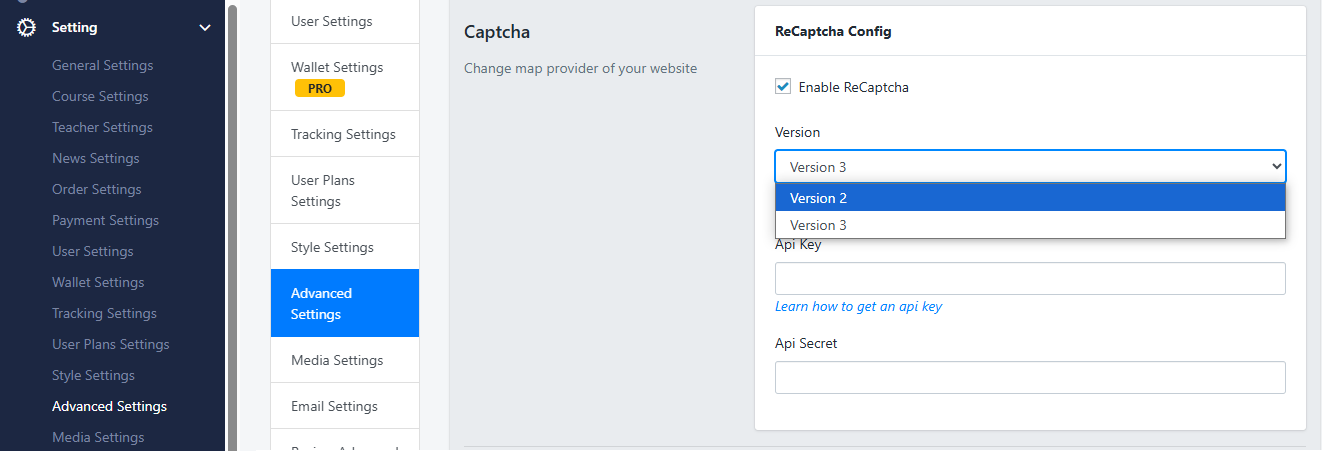
- reCAPTCHA type: Choose reCAPTCHA v2 or v3 depending on your needs.
- Domains: Enter your website domain (e.g.,
yourdomain.com).
- After registering, you will receive a Site Key and Secret Key.
- Go back to your website admin panel and navigate to: Dashboard > Settings > Advance Settings > reCAPTCHA
- Paste the Site Key and Secret Key into the corresponding fields.
- Save the changes and you’re done!
Note: Make sure your reCAPTCHA is working correctly by testing the Register forms first then other forms.
2. Turn on ReCaptcha for Login / Register form / Enquiry form
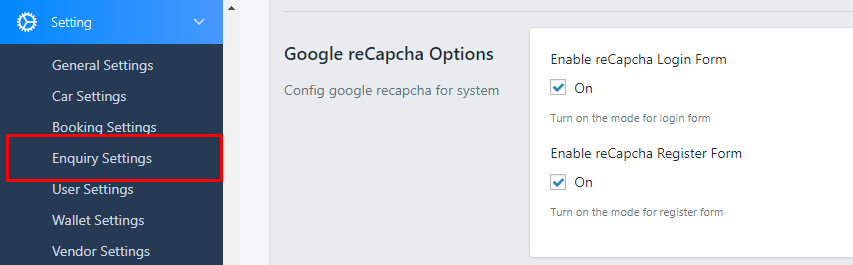
For Login/Register form: Go to Settings > User Settings > Google ReCaptcha Options
Tick to the form you need to enable ReCaptcha: Login form or Register form:
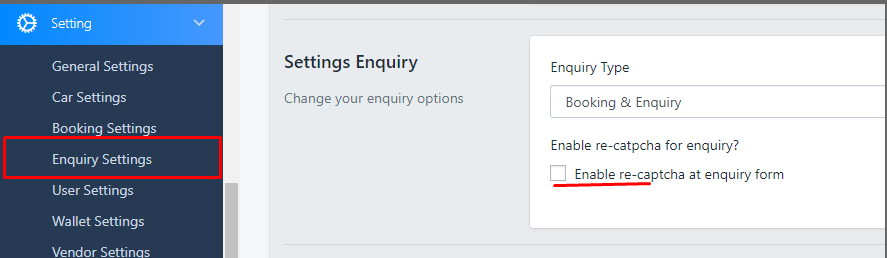
For Enquiry form: Go to Settings > Enquiry Settings > Enable re-captcha at enquiry form
Was this article helpful?